Welcome to the Keel theme documentation! This documentation is designed to provide you with all the necessary information to help you get started with the Keel theme for your Ghost-powered website. Before diving into the documentation, it is important to have a basic understanding of Ghost and its concepts. If you are new to Ghost, we recommend referring to the official Ghost documentation to familiarize yourself with the platform.
Customization and Code Modifications:
Keel theme offers extensive customization options to personalize your website's appearance and functionality. Please exercise caution when making custom code changes, as incorrect modifications can potentially break your website's functionality or layout. It is recommended to create backups and test changes in a development environment before applying them to your live site.
Support Limitations:
Please be aware that our support for Keel theme is primarily focused on theme-specific issues and providing guidance on theme features and settings. We do not provide support for issues arising from custom code modifications or third-party integrations. If you encounter any issues or have questions related to Keel theme's built-in features and settings, please refer to the documentation or reach out to our support team for assistance. For custom code modifications and advanced customization requests, you can reach out to us—we also offer theme customization at an hourly rate.
By being mindful of these considerations, you can fully leverage the power and flexibility of Keel theme while ensuring a smooth and successful customization experience.
Upon purchasing the Keel theme, you will receive a .zip file containing the theme files. Follow the steps below to upload and activate the theme:
- Log in to your Ghost Admin dashboard, navigate to Design & branding and click on "Customize".
- In the Design Settings page, click on the "Change theme" button located in the bottom right corner.
- Click on the "Upload theme" button in the top right corner.
- Select the Keel theme .zip file (keel.zip) either by clicking the "Select file" button or by dragging and dropping the file into the designated area.
- Once the theme is uploaded, click on the "Activate" button to activate the Keel theme.
That's it! The Keel theme is now successfully installed and ready to be customized according to your preferences. Enjoy exploring the theme's features and unleash the full potential of your Ghost-powered website.
To edit the theme files in the Keel theme, follow these steps:
- Start by opening the keel.zip file and extracting all the files within.
- Choose the specific file you want to modify and open it using a code editor of your choice, such as Sublime Text, Visual Studio Code, Atom, or any other preferred editor.
- Make the necessary changes to the file according to your requirements, and remember to save the updated file.
- Once you have finished editing and saving the file, re-zip all the modified files to create a new .zip archive.
- Finally, upload the newly created .zip file to your Ghost Admin by following the instructions provided in the "Upload" section.
Please note that when editing theme files, it's important to have a good understanding of HTML, CSS, and Ghost theming concepts. Additionally, always make backups of the original theme files before making any changes, so you can revert back if needed.
The primary navigation is used for links that appear in the navigation bar or menu of your website. To add a link to the primary navigation, follow these steps:
- Go to the Ghost Admin Panel and navigate to the Navigation Settings.
- In the Primary navigation section, enter the name of the link in the Label field, and specify its URL in the corresponding field on the right. You can add or remove more links, and rearrange them by dragging them to change their position.
The Keel theme also supports second-level or inner links within the primary navigation. To create these sub-links, follow these guidelines:
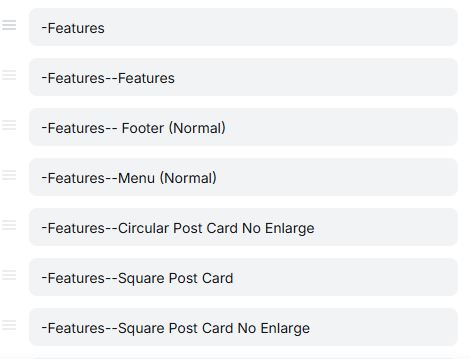
- Start by adding a Label text that will serve as a grouping for certain links. For example, if you want the label to be named "About," enter the text: "-About".
- Next, add the links that will be grouped under that label. Use the following format: "-labelname--linkname". For instance, if you want to add a link named "Home" to the "About" group, you would write it as "-About--Home".
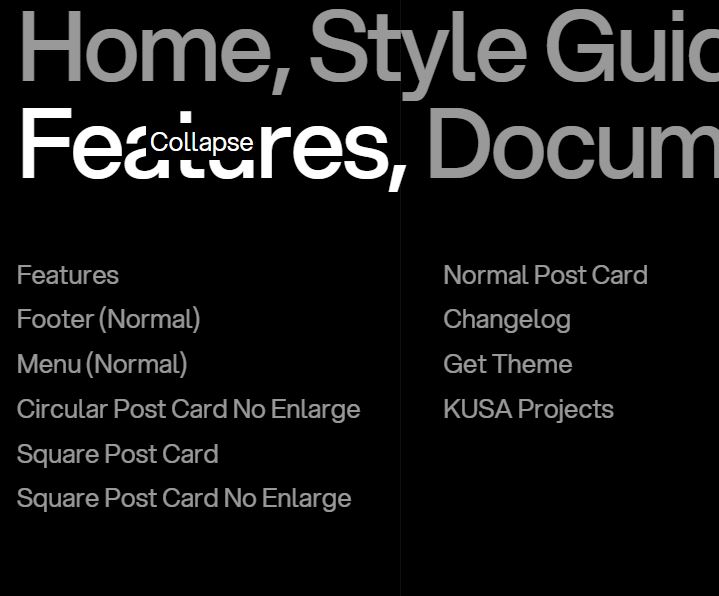
In the example images below, you can see how the links are grouped using labels. In this case, the label for the links group is named "Features" (-Features), and it contains sub-links such as Features (-Features--Features), Footer (-Features--Footer), and Square Post Card(-Features--Square Post Card). This allows you to organize your navigation menu and create hierarchical links within the primary navigation.
The secondary navigation is used for links that appear in the footer of your website. To add a link to the secondary navigation, follow these steps:
- Go to the Ghost Admin Panel and navigate to the Navigation Settings.
- In the Secondary navigation section, enter the name of the link in the Label field, and specify its URL in the corresponding field on the right. You can add or remove more links, and rearrange them by dragging them to change their position.
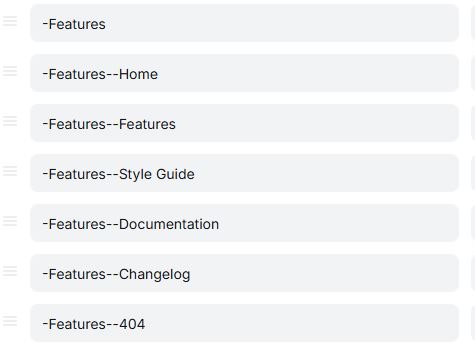
The Keel theme also supports second-level or inner links within the secondary navigation. To create these sub-links, follow these guidelines:
- Start by adding a Label text that will serve as a grouping for certain links. For example, if you want the label to be named "About," enter the text: "-About".
- Next, add the links that will be grouped under that label. Use the following format: "-labelname--linkname". For instance, if you want to add a link named "Home" to the "About" group, you would write it as "-About--Home".
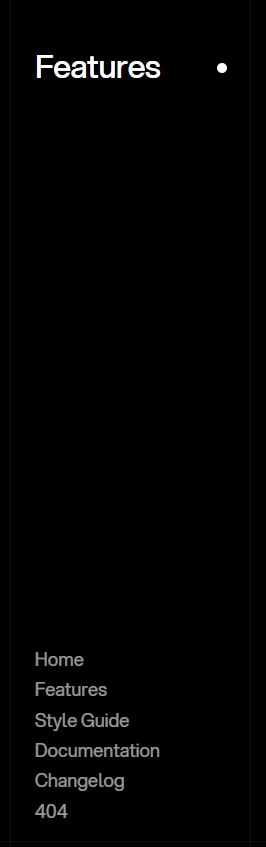
In the example images below, you can see how the links are grouped using labels. In this case, the label for the links group is named "Features" (-Features), and it contains sub-links such as Features (-Features--Features), Style Guide (-Features--Style Guide), Documentation (-Features--Documentation) and Changelog (-Features--Changelog). This allows you to organize your navigation menu and create hierarchical links within the secondary navigation. Please note that "Creative" footer type only allows you to add 6 grouped columns.
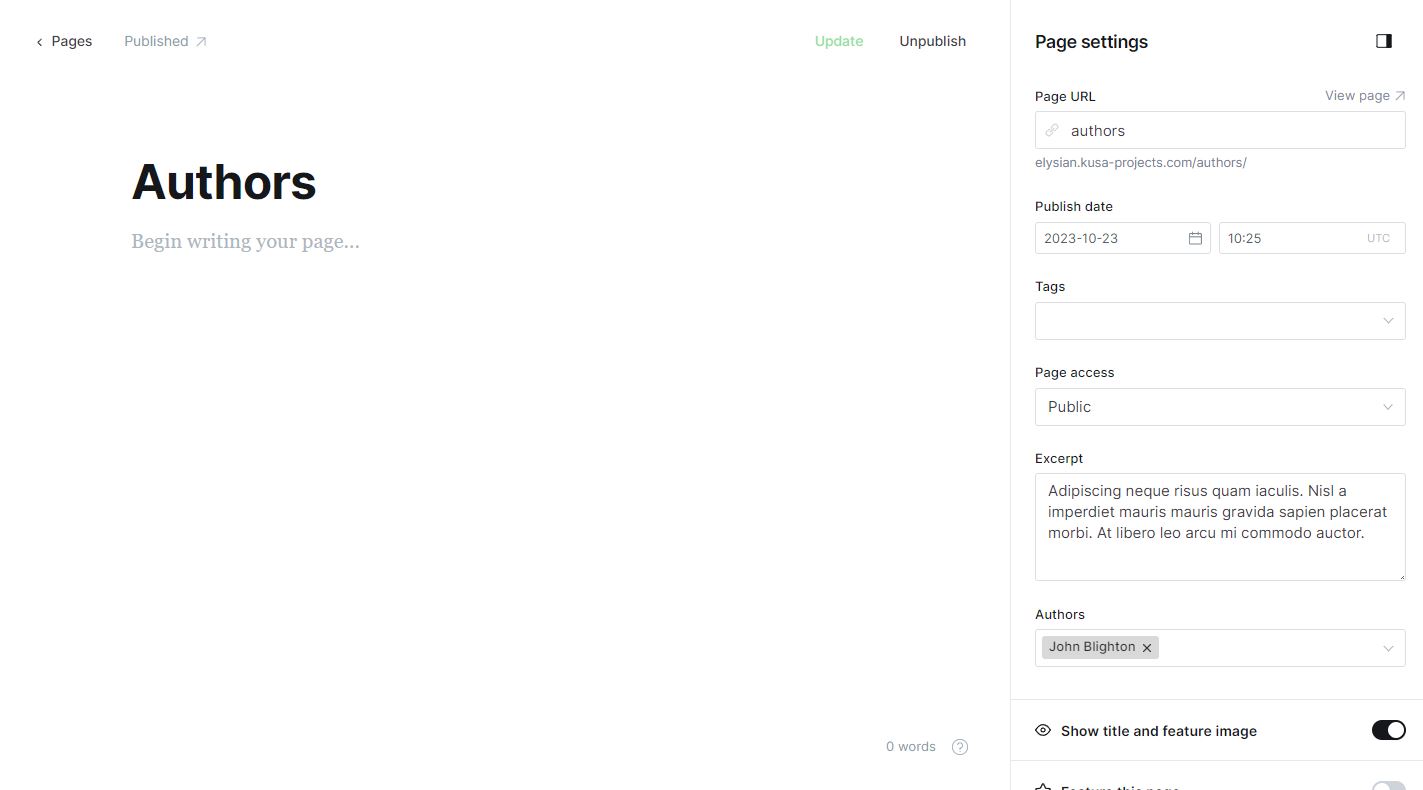
The Keel theme includes a custom-made page for displaying all of the authors on your website. To add this page, follow these steps:
- From your Ghost admin dashboard, navigate to the Pages section (located in the left tab).
- Click on the "New page" button in the top right corner.
- In the page editor, enter a title for your page. This will be displayed as the heading on the Authors page.
- Click on the page settings icon (located in the top right corner) and provide a description in the Excerpt field. This description will appear below the heading on the page.
- IMPORTANT: In the page settings, make sure to set the Page URL field to "authors". It is essential to use this specific URL name for the feature to work correctly. If you choose a different URL, this functionality may not function as intended.
- Refer to the image below for an example of how the Authors page should be set up.
- Once you have finished configuring the page settings and adding content, click on the "Publish" button located in the top right corner. This will make the Authors page accessible to your website visitors.
The Keel theme includes three different custom-made pages for displaying author info. Please refer to "Author page type" section for more information.
The Keel theme includes a custom-made page for displaying the FAQ page with toggle cards. To add this page, follow these steps:
- From your Ghost admin dashboard, navigate to the Pages section (located in the left tab).
- Click on the "New page" button in the top right corner.
- In the page editor, enter a title for your page. This will be displayed as the heading on the FAQ page.
- Click on the page settings icon (located in the top right corner) and provide a description in the Excerpt field. This description will appear below the heading on the page.
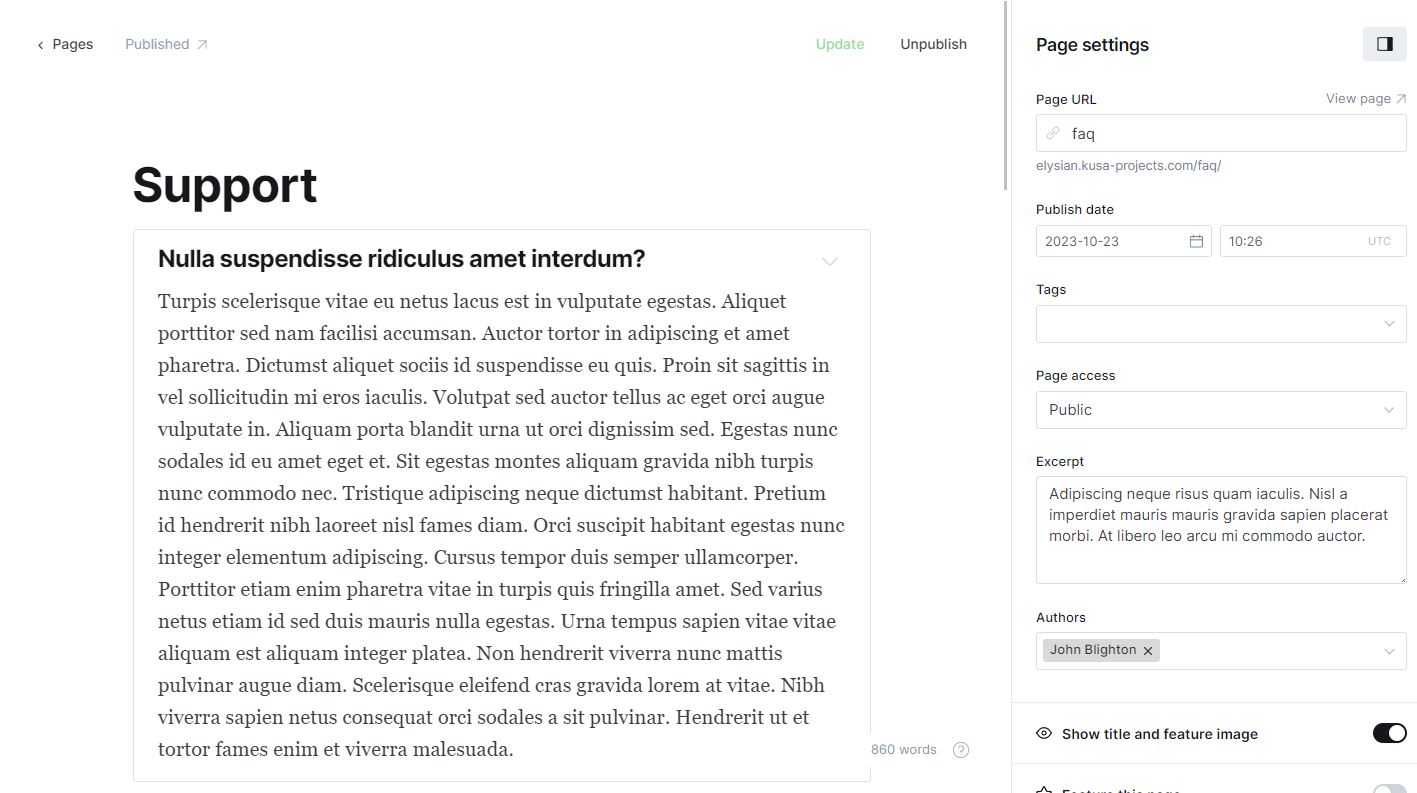
- IMPORTANT: In the page settings, make sure to set the Page URL field to "faq". It is essential to use this specific URL name for the feature to work correctly. If you choose a different URL, this functionality may not function as intended.
- Refer to the image below for an example of how the FAQ page should be set up.
- Once you have finished configuring the page settings and adding content, click on the "Publish" button located in the top right corner. This will make the FAQ page accessible to your website visitors.
The Keel theme includes a custom-made page for displaying all posts filtered by tags on your website. To add this page, follow these steps:
- From your Ghost admin dashboard, navigate to the Pages section (located in the left tab).
- Click on the "New page" button in the top right corner.
- In the page editor, enter a title for your page. This will be displayed as the heading on the Archive page.
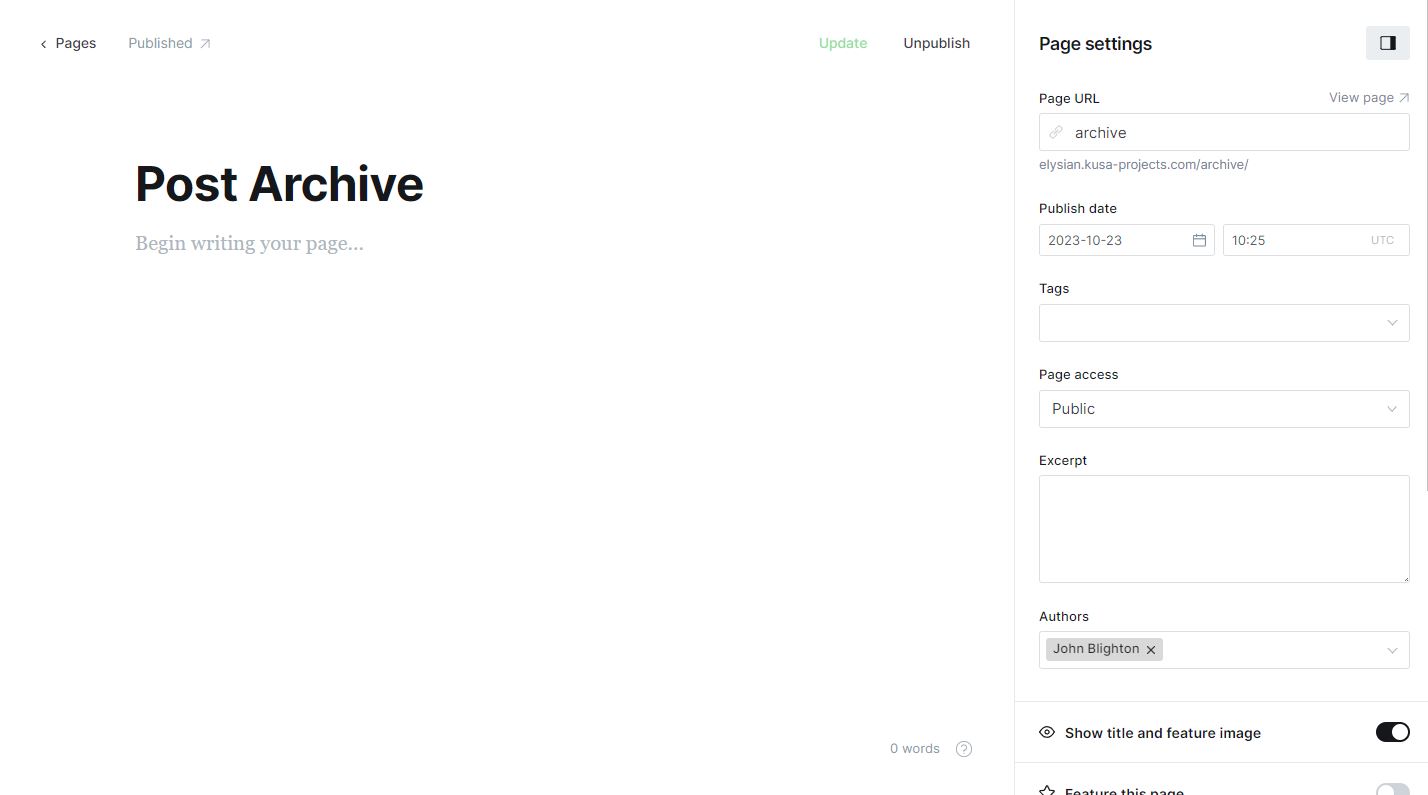
- IMPORTANT: In the page settings, make sure to set the Page URL field to "archive". It is essential to use this specific URL name for the feature to work correctly. If you choose a different URL, this functionality may not function as intended.
- Refer to the image below for an example of how the Archive page should be set up.
- Once you have finished configuring the page settings and adding content, click on the "Publish" button located in the top right corner. This will make the Archive page accessible to your website visitors.
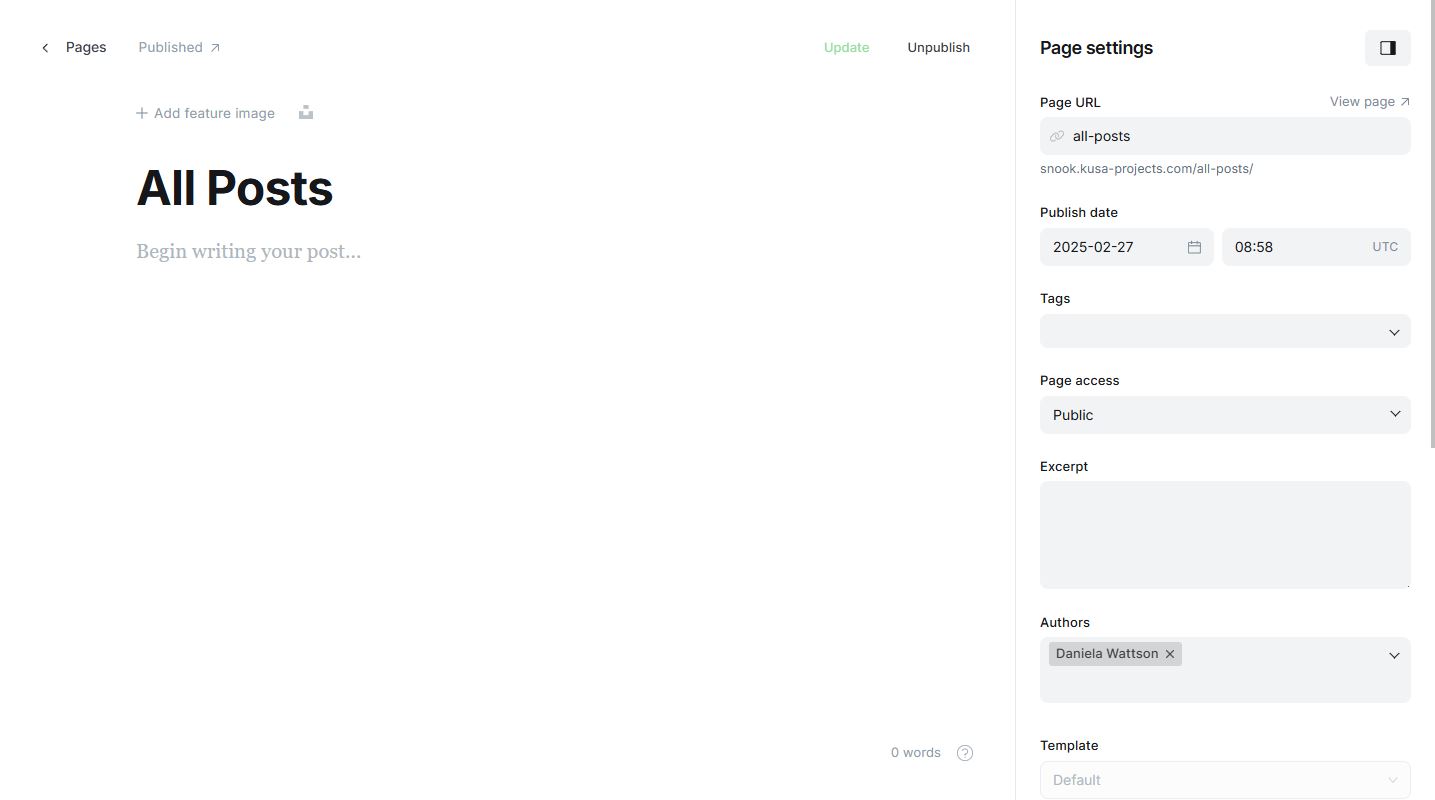
The Keel theme includes a custom-built page that displays all posts in a creative, year-based layout. Posts are grouped by year and loaded in paginated batches of 40. Pagination is handled via infinite scroll — when you reach the end of the current batch, the next 40 posts are automatically loaded, and this continues as you scroll. To add this page, follow these steps:
- From your Ghost admin dashboard, navigate to the Pages section (located in the left tab).
- Click on the "New page" button in the top right corner.
- In the page editor, enter a title for your page. This will be displayed as the heading on the All posts page.
- IMPORTANT: In the page settings, make sure to set the Page URL field to "all-posts". It is essential to use this specific URL name for the feature to work correctly. If you choose a different URL, this functionality may not function as intended.
- Refer to the image below for an example of how the All posts page should be set up.
- Once you have finished configuring the page settings, click on the "Publish" button located in the top right corner.
- IMPORTANT: Open the Keel theme .zip file (keel.zip) and extract the file named "routes.yaml".
In your Ghost Admin dashboard, navigate to Labs Settings.
Click on the "Upload routes YAML" button and select the extracted "routes.yaml" file.
After these steps the All posts page should be accessible to your website visitors.
The Keel theme includes a custom-made Sign in page. To add this page, follow these steps:
- From your Ghost admin dashboard, navigate to the Pages section (located in the left tab).
- Click on the "New page" button in the top right corner.
- In the page editor, enter a title for your page. This will be displayed as the heading on the Sign in page.
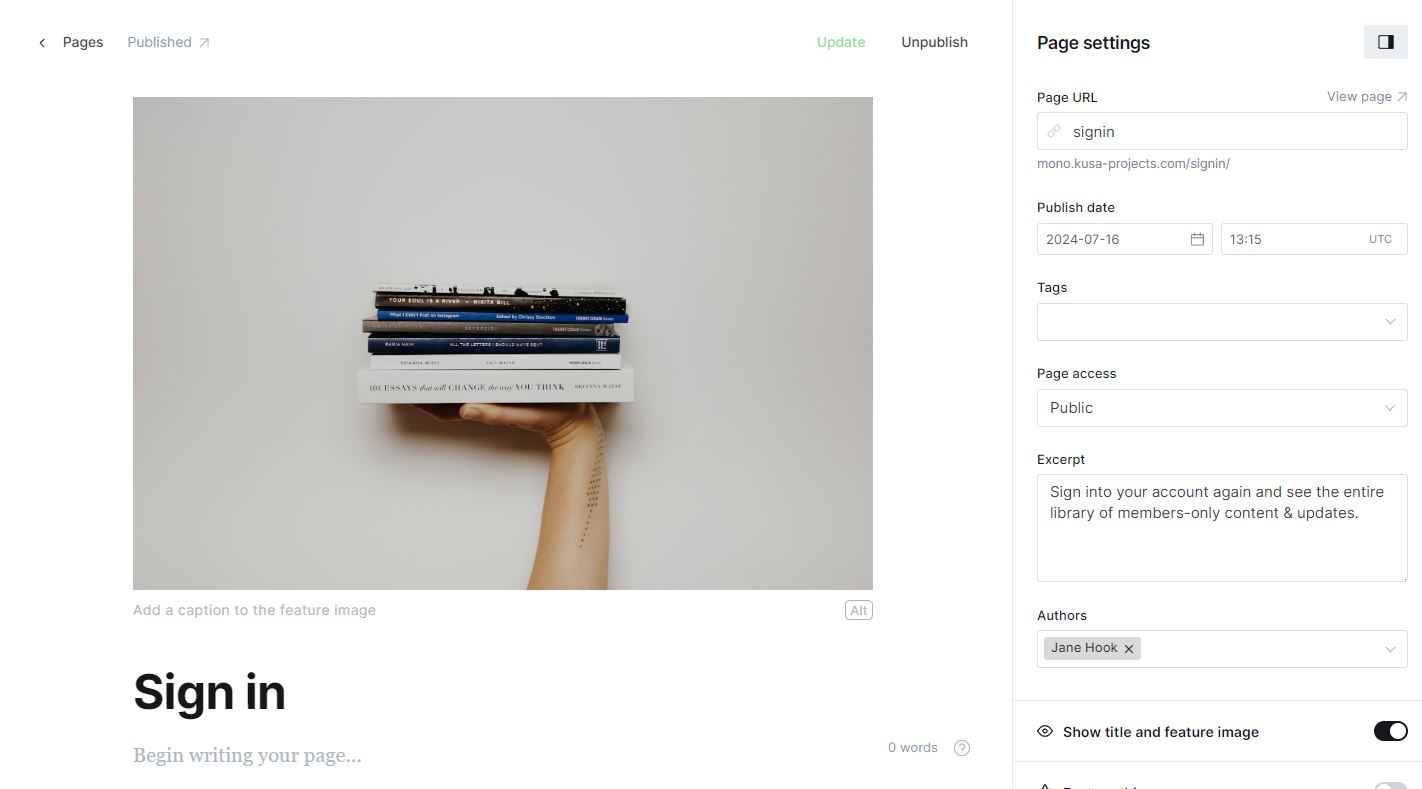
- Click on the page settings icon (located in the top right corner) and provide a description in the Excerpt field. This description will appear below the heading on the page. Additionally, you can also add a feature image.
- IMPORTANT: In the page settings, make sure to set the Page URL field to "signin". It is essential to use this specific URL name for the feature to work correctly. If you choose a different URL, this functionality may not function as intended.
- Refer to the image below for an example of how the Sign in page should be set up.
- Once you have finished configuring the page settings and adding content, click on the "Publish" button located in the top right corner. This will make the Sign in page accessible to your website visitors.
The Keel theme includes a custom-made Sign up page. To add this page, follow these steps:
- From your Ghost admin dashboard, navigate to the Pages section (located in the left tab).
- Click on the "New page" button in the top right corner.
- In the page editor, enter a title for your page. This will be displayed as the heading on the Sign up page.
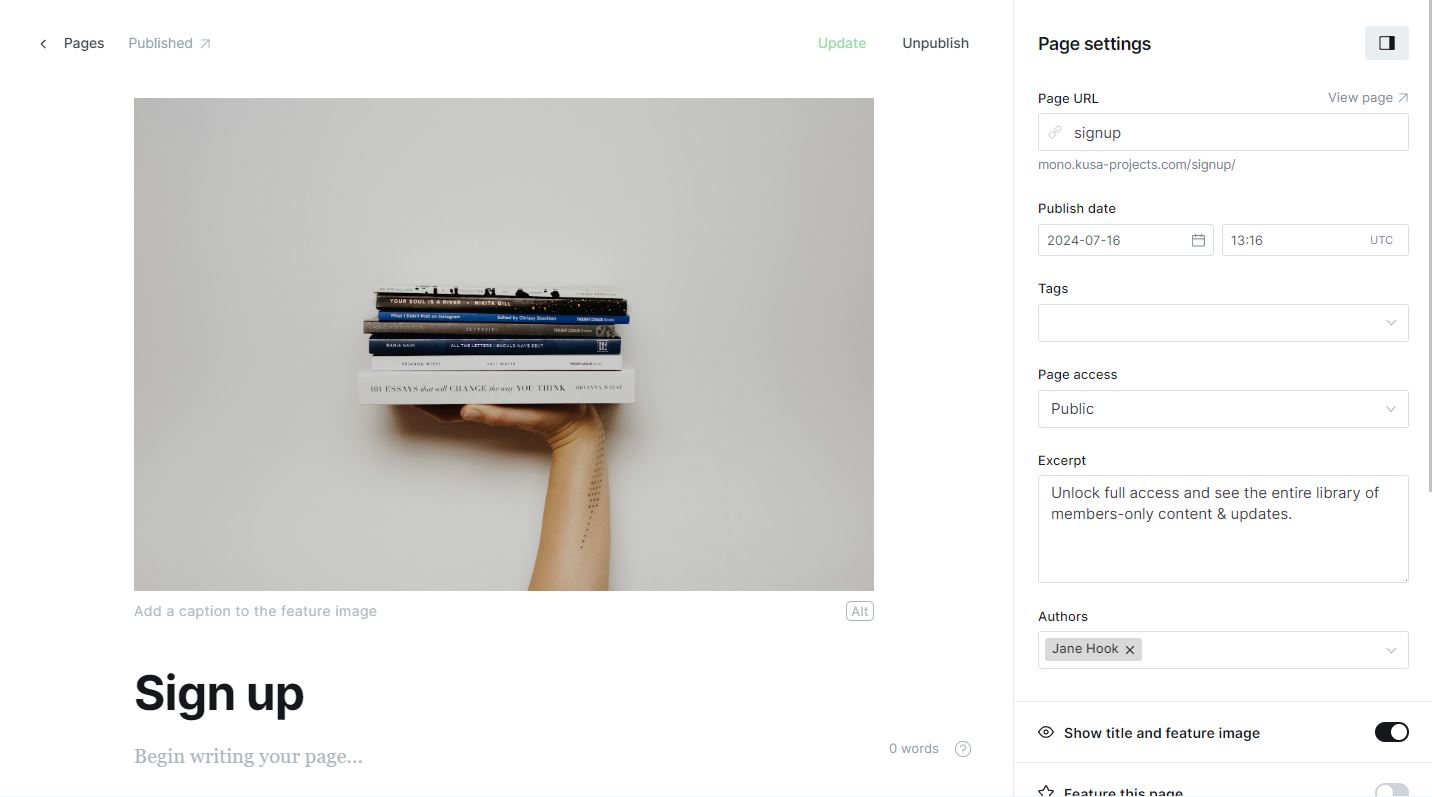
- Click on the page settings icon (located in the top right corner) and provide a description in the Excerpt field. This description will appear below the heading on the page. Additionally, you can also add a feature image,
- IMPORTANT: In the page settings, make sure to set the Page URL field to "signup". It is essential to use this specific URL name for the feature to work correctly. If you choose a different URL, this functionality may not function as intended.
- Refer to the image below for an example of how the Sign up page should be set up.
- Once you have finished configuring the page settings and adding content, click on the "Publish" button located in the top right corner. This will make the Sign up page accessible to your website visitors.
The Keel theme includes a custom-made Subscribe page. To add this page, follow these steps:
- From your Ghost admin dashboard, navigate to the Pages section (located in the left tab).
- Click on the "New page" button in the top right corner.
- In the page editor, enter a title for your page. This will be displayed as the heading on the Subscribe page.
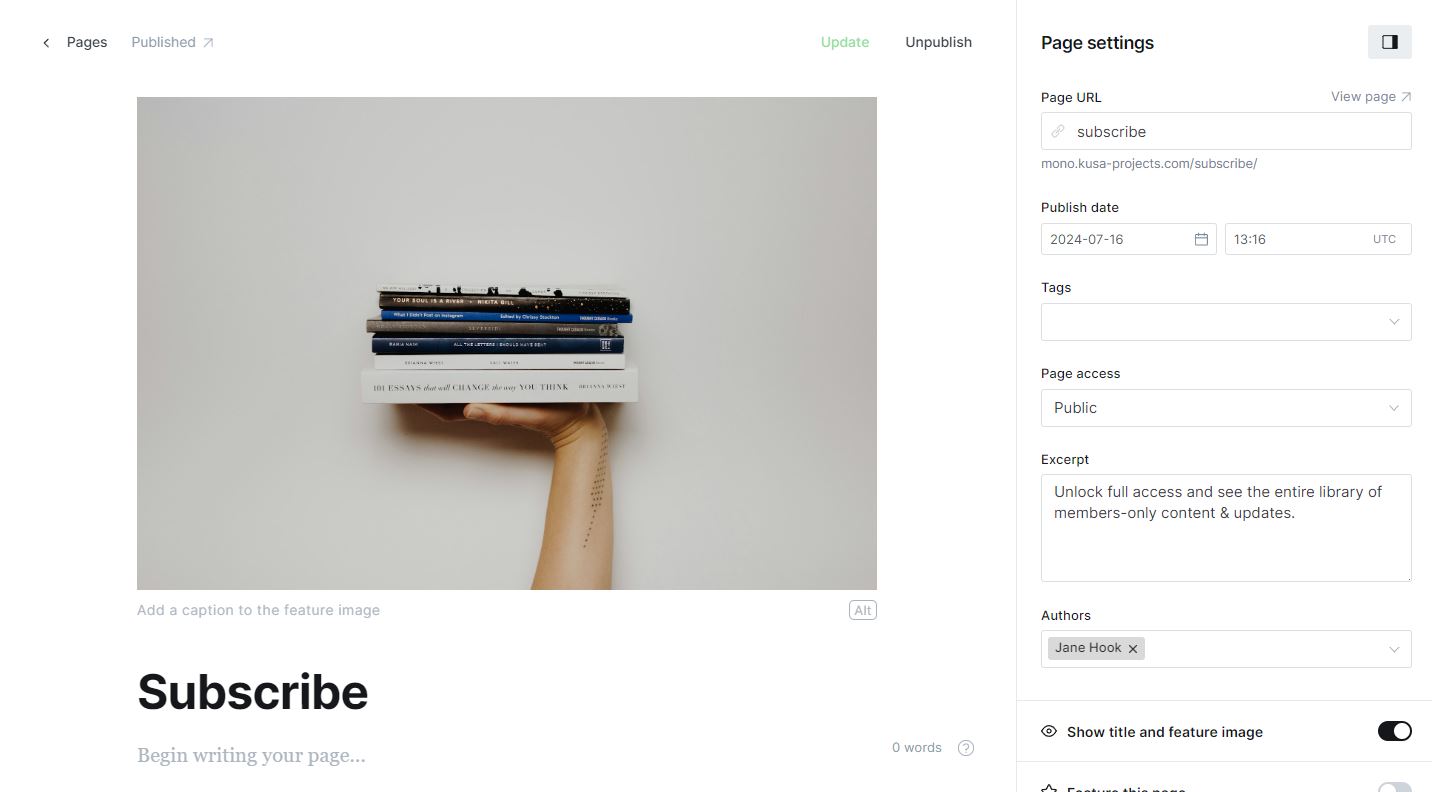
- Click on the page settings icon (located in the top right corner) and provide a description in the Excerpt field. This description will appear below the heading on the page. Additionally, you can also add a feature image.
- IMPORTANT: In the page settings, make sure to set the Page URL field to "subscribe". It is essential to use this specific URL name for the feature to work correctly. If you choose a different URL, this functionality may not function as intended.
- Refer to the image below for an example of how the Subscribe page should be set up.
- Once you have finished configuring the page settings and adding content, click on the "Publish" button located in the top right corner. This will make the Subscribe page accessible to your website visitors.
The Keel theme includes a custom-made Account page. To add this page, follow these steps:
- From your Ghost admin dashboard, navigate to the Pages section (located in the left tab).
- Click on the "New page" button in the top right corner.
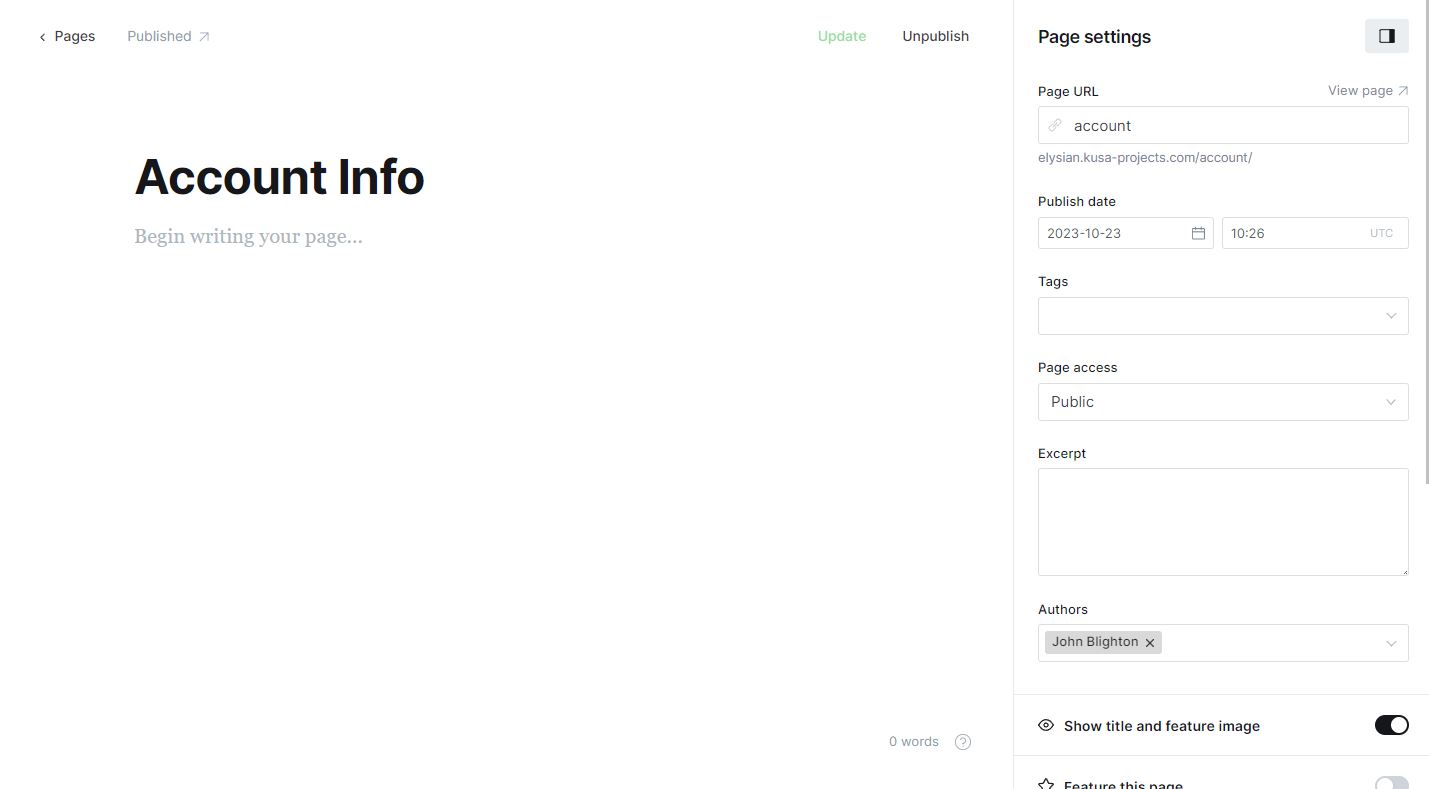
- IMPORTANT: In the page settings, make sure to set the Page URL field to "account". It is essential to use this specific URL name for the feature to work correctly. If you choose a different URL, this functionality may not function as intended.
- Refer to the image below for an example of how the Account page should be set up.
- Once you have finished configuring the page settings and adding content, click on the "Publish" button located in the top right corner. This will make the Account page accessible to your website visitors.
The Keel theme includes a custom-made page for displaying the membership tiers (yearly and monthly) on your website. To add this page, follow these steps:
- From your Ghost admin dashboard, navigate to the Pages section (located in the left tab).
- Click on the "New page" button in the top right corner.
- In the page editor, enter a title for your page. This will be displayed as the heading on the Membership page.
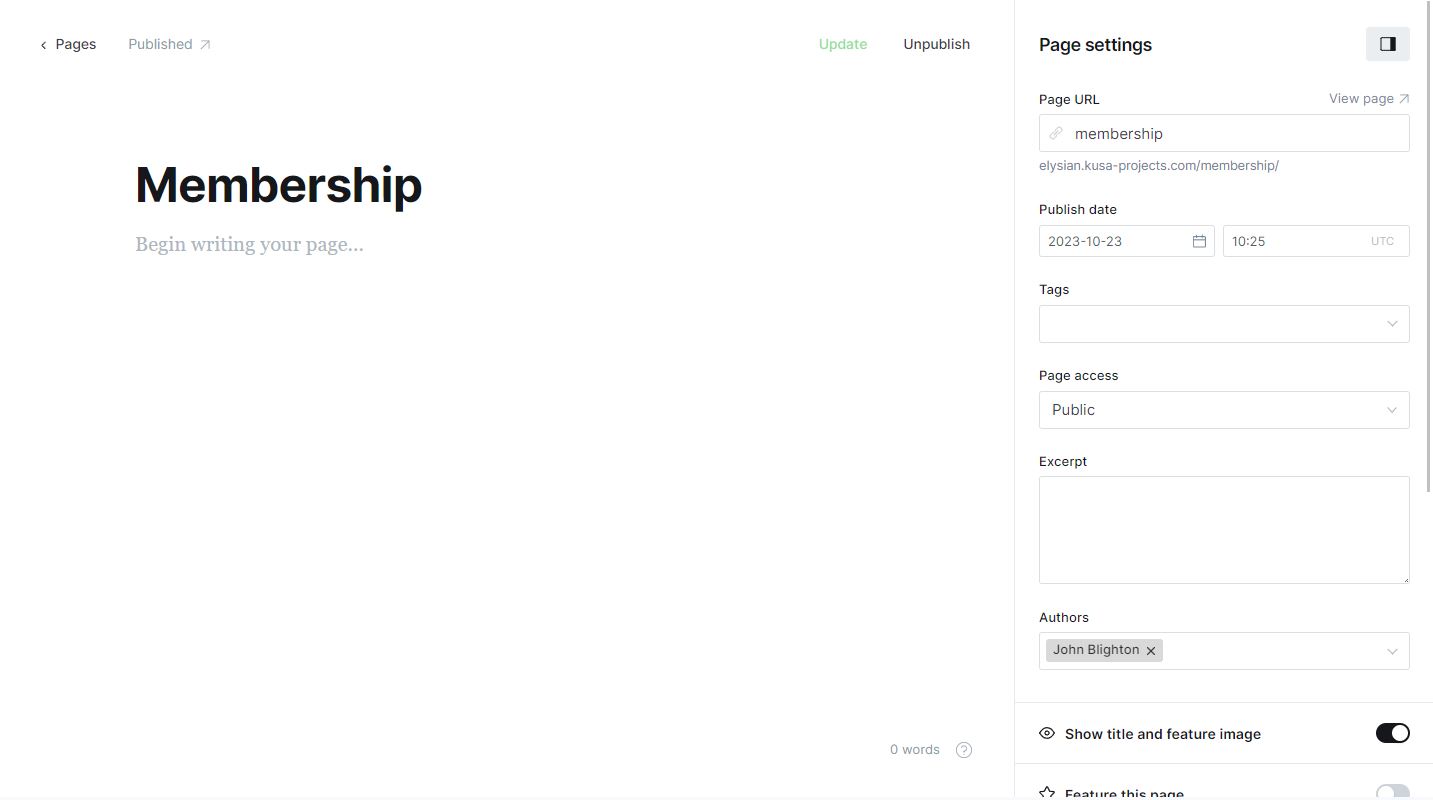
- IMPORTANT: In the page settings, make sure to set the Page URL field to "membership". It is essential to use this specific URL name for the feature to work correctly. If you choose a different URL, this functionality may not function as intended.
- Refer to the image below for an example of how the Membership page should be set up.
- Once you have finished configuring the page settings and adding content, click on the "Publish" button located in the top right corner. This will make the Membership page accessible to your website visitors.
To customize the theme's colors, simply follow these steps:
- Access the Design settings page in your Ghost admin dashboard.
- Open the Site-wide dropdown under the Site design section.
- Please enter the colors in the designated (Colors) field. You can configure four colors:
Text color, background color, overlay text color, overlay background opacity, vertical lines opacity.
Enter the colors in hex code, separated by commas. Example:
#000000, #ffffff, #ffffff, 20%, 6% - Click the Save button located in the top-right corner to apply the changes.
The Keel theme offers the versatility of utilizing Google fonts, providing you with two distinct font options on your website. The primary font is employed for heading fonts and the secondary font for body text. In the event this setting is left empty, the default fonts will be automatically applied. To modify this setting, follow the steps below:
- Access the Design settings page in your Ghost admin dashboard.
- Open the Site-wide dropdown under the Site design section.
- Please enter the fonts by their respective names in the designated field (Fonts) from the Google Fonts page, with each font separated by a comma. For example: Roboto Mono, Roboto
- Click the Save button located in the top-right corner to apply the changes.
The Keel theme offers the flexibility to utilize custom account pages. Choosing custom account pages will result in the creation of links such as sign-in, sign-up, subscribe, and account, replacing the default Ghost pop-ups. If you select none, no links will be generated to direct users to the custom pages. To adjust this setting, please follow the steps outlined below:
- Access the Design settings page in your Ghost admin dashboard.
- Open the Site-wide dropdown under the Site design section.
- Check/uncheck the toggle button for Use custom account pages.
- Click the Save button located in the top-right corner to apply the changes.
- IMPORTANT: In order for custom account pages to work, you need to create pages with the following Page URLs: 'signin', 'signup', 'subscribe' and 'account'. Please refer to documentation for these custom pages.
The Keel theme allows you to scale your logo image. To modify this setting, follow the steps below:
- Access the Design settings page in your Ghost admin dashboard.
- Open the Site-wide dropdown under the Site design section.
- Select the desired scale factor on the Logo scale dropdown.
- Click the Save button located in the top-right corner to apply the changes.
This feature lets you add an accent logo, which will be displayed on menu and overlay images. Please note that you must also upload a Publication logo for this to function properly. To modify this setting, follow the steps below:
- Access the Design settings page in your Ghost admin dashboard.
- Open the Site-wide dropdown under the Site design section.
- Add your accent logo in Accent logo image picker.
- Click the Save button located in the top-right corner to apply the changes.
The Keel theme allows you to scale the font size of all text elements using the heading font. To modify this setting, follow the steps below:
- Access the Design settings page in your Ghost admin dashboard.
- Open the Site-wide dropdown under the Site design section.
- Select the desired scale factor on the Heading font scale dropdown.
- Click the Save button located in the top-right corner to apply the changes.
The Keel theme provides the option to change the image aspect ratio for post, tag and author cards (2/3, 3/4, 4/5, 16/9, 4/3, 3/2, 5/4 or 1/1) . This applies only if the Card type setting is set to Normal. To modify this setting, follow the steps below:
- Access the Design settings page in your Ghost admin dashboard.
- Open the Site-wide dropdown under the Site design section.
- Select the desired image aspect ratio on the Post card image aspect ratio dropdown.
- Click the Save button located in the top-right corner to apply the changes.
The Keel theme allows you to use page animations. To modify this setting, follow the steps below:
- Access the Design settings page in your Ghost admin dashboard.
- Open the Site-wide dropdown under the Site design section.
- Check/uncheck the toggle button for Use page load animations.
- Click the Save button located in the top-right corner to apply the changes.
The Keel theme offers the flexibility to display additional information under the post cards such as post author, excerpt and date. This applies only if the Card type setting is set to Normal. To modify this setting, follow the steps below:
- Access the Design settings page in your Ghost admin dashboard.
- Open the Site-wide dropdown under the Site design section.
- Check/uncheck the toggle button for Post card info dropdown.
- Click the Save button located in the top-right corner to apply the changes.
By default the theme is showing vertical lines on all pages. You can remove them with this setting or set their opacity to 0 in "Theme colors" setting. To modify it, follow the steps below:
- Access the Design settings page in your Ghost admin dashboard.
- Open the Site-wide dropdown under the Site design section.
- Check/uncheck the toggle button for Display vertical lines dropdown.
- Click the Save button located in the top-right corner to apply the changes.
With this setting you can toggle the hover scramble animation. To modify it, follow the steps below:
- Access the Design settings page in your Ghost admin dashboard.
- Open the Site-wide dropdown under the Site design section.
- Check/uncheck the toggle button for Use scramble animation.
- Click the Save button located in the top-right corner to apply the changes.
The Keel theme offers the flexibility to choose from two types of hero section design on home page: Circle or Full Image. To modify this setting, follow the steps below:
- Access the Design settings page in your Ghost admin dashboard.
- Open the Site-wide dropdown under the Site design section.
- Select the desired layout type on the Homepage hero type dropdown.
- Click the Save button located in the top-right corner to apply the changes.
The Keel theme offers the flexibility to choose from two types of slider types that are present on home page and tags (Creative) page: Creative or Normal. To modify this setting, follow the steps below:
- Access the Design settings page in your Ghost admin dashboard.
- Open the Site-wide dropdown under the Site design section.
- Select the desired layout type on the Slider layout dropdown.
- Click the Save button located in the top-right corner to apply the changes.
HOMEPAGE Secondary Slider Type
The Keel theme offers the flexibility to choose from three types of hero secondary slider on the home page: Testimonials, Authors or None. To modify this setting, follow the steps below:
- Access the Design settings page in your Ghost admin dashboard.
- Open the Site-wide dropdown under the Site design section.
- Select the desired layout type on the Homepage secondary slider type dropdown.
- Click the Save button located in the top-right corner to apply the changes.
- IMPORTANT: If you're using the "Testimonial" option, please refer to the "Adding Testimonials" section for instructions on how to add the data.
You can choose between five different card types (Circular, Circular No Enlarge, Square, Square No Enlarge or Normal). To modify this setting, follow the steps below:
- Access the Design settings page in your Ghost admin dashboard.
- Open the Site-wide dropdown under the Site design section.
- Select the desired card style on the Card type dropdown.
- Click the Save button located in the top-right corner to apply the changes.
The Keel theme offers 3 options for the author page layout: Creative, Creative No Pin and Normal. You can easily switch between these layouts by following these steps:
- Access the Design settings page in your Ghost admin dashboard.
- Open the Post dropdown under the Site design section.
- Select the desired layout on the Author page type dropdown.
- Click the Save button located in the top-right corner to apply the changes.
Feel free to experiment with all layouts to find the one that complements your content presentation the most.
Pinned Hero Post On Homepage
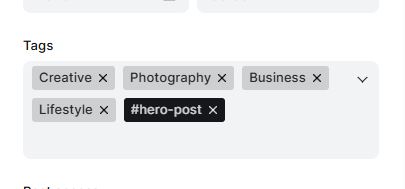
By default, the first post on the homepage is the latest one. If you’d like to feature a specific post instead, simply add the internal tag #hero-post to that post.
The Keel theme offers a visually appealing featured posts section. You can easily showcase your selected blog posts by marking them as "Featured". Here's how to utilize this section:
- Open the desired blog post you want to feature.
- Click on the Post Settings icon (top right corner).
- Look for the "Feature this post" checkbox and make sure to check it.
- Repeat the process to populate the featured stories section.
By highlighting specific blog posts as featured, you can draw attention to your most important or captivating content. Take advantage of this dynamic section to engage your audience and showcase your best work.
ADDING Testimonials On Homepage
The Keel theme lets you add testimonials as the content on the home page slider. To do so, follow these steps:
- From your Ghost admin dashboard, navigate to the Pages section (located in the left tab).
- Click on the "New page" button in the top right corner.
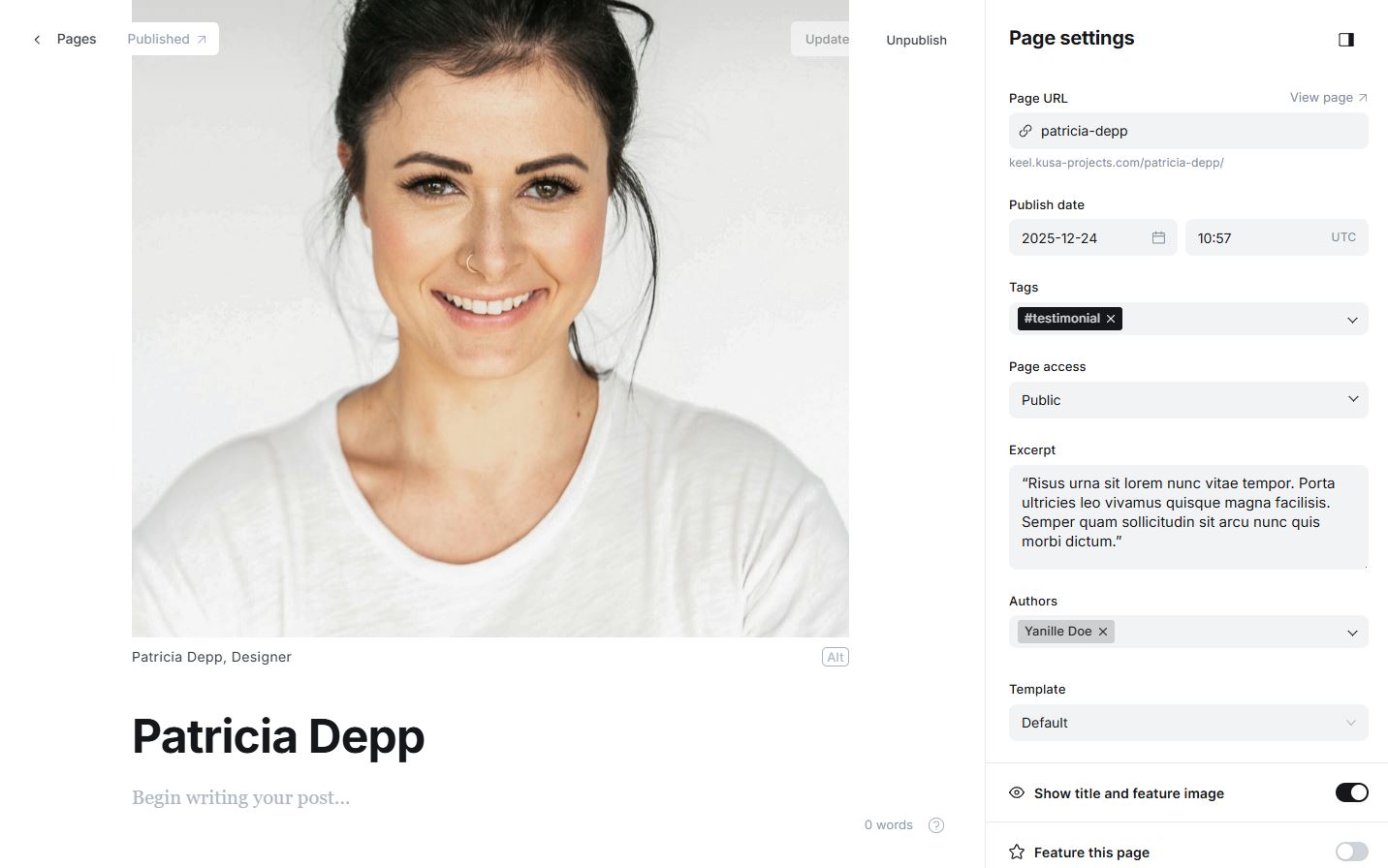
- IMPORTANT: In the page settings, make sure to add an internal tag #testimonial.
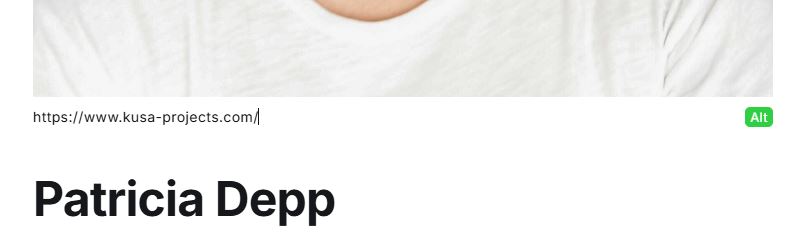
- The page name represents the person's name. Add a testimonial image as featured image and include a caption for the person’s name and job title. You can also add alt text to the image. The alt text should be a link that leads to the person’s website, allowing users to navigate directly to their page. The excerpt text is the testimonial text.
- Refer to the image below for an example of how the Testimonials page should be set up.
- Each testimonial page represents a single testimonial and is automatically added to the secondary slider on the homepage. You can create up to 8 testimonial pages.
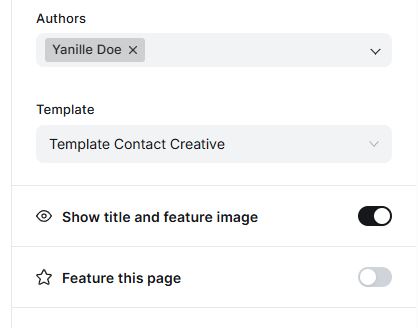
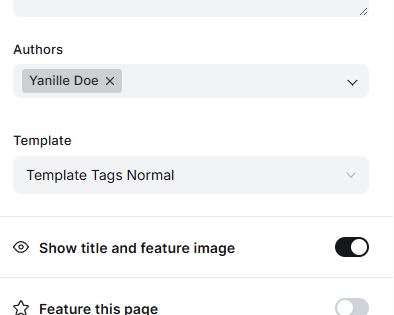
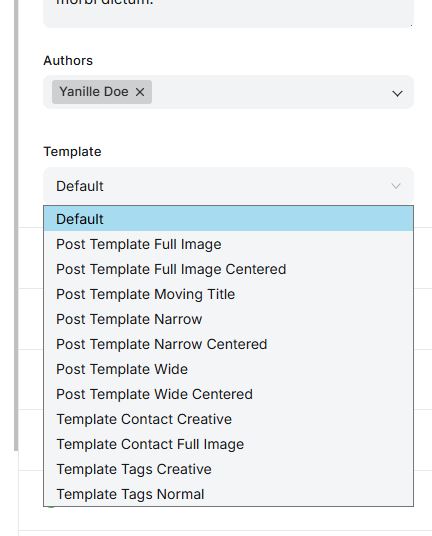
You can choose between 8 different post/page templates (Default, Post Template Full Image, Post Template Full Image Centered, Post Template Moving Title, Post Template Wide, Post Template Wide Centered, Post Template Narrow, Post Template Narrow Centered).
You can change the post template on every post/page settings (right side). Refer to the image below:
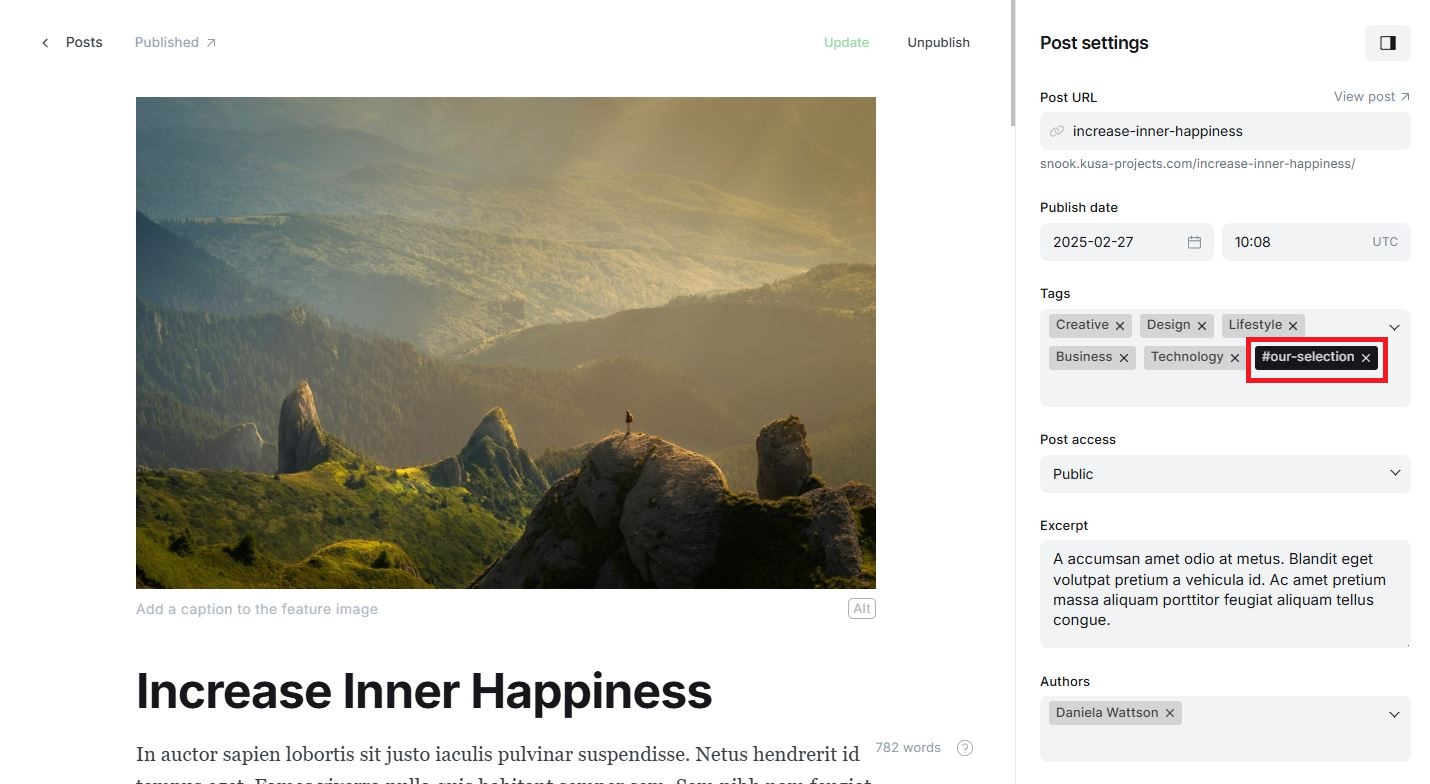
To add posts to the "Our Selection" section on the home page, simply add the internal tag "#our-selection" to the posts you wish to include. Make sure to place the "#" before "our-selection." You can add up to 4 posts to this section. See the image below for reference:
The Keel theme supports translation, allowing you to translate all static text on your website into different languages. By default, the theme is in English, but you can add your own translations. To do so, follow these steps:
- Download and unzip/extract the theme files.
- Locate the "locales" folder and open it.
- Inside the "locales" folder, you'll find a file named "en.json". Duplicate this file and rename the duplicate to the language you want to translate to. Ensure that you name it using a valid language code. For example, "es.json" for Spanish and "pl.json" for Polish.
- Open the translated file using a text editor.
- The file will have a structure like this:
{
"Back": "Back",
"Newer Posts": "Newer Posts",
"Older Posts": "Older Posts"
}
To change the translation, modify the text on the right-hand side while keeping the left-hand side unchanged. For example, to translate into Spanish (es.json):
{
"Back": "Volver",
"Newer Posts": "Artículos Siguientes",
"Older Posts": "Artículos Anteriores"
} - Translate all the text strings accordingly and save the file.
- Re-zip all the theme files and upload the updated theme to your Ghost admin panel. Publish the theme.
- Navigate to General Settings in the admin panel and locate the "Publication language" section. Change the locale name to the language you've translated the theme into. For example, "en" for English, "es" for Spanish, etc.
- Click on the Save button at the top right corner to apply the changes.
To modify the static text in the Keel theme, follow these steps:
- Download and unzip/extract the theme files.
- Locate the "locales" folder and open it.
- Inside the "locales" folder, you'll find a file named "en.json". Open this file in a text editor.
- The file will have a structure like this:
{
"Back": "Back",
"Newer Posts": "Newer Posts",
"Older Posts": "Older Posts"
}
To change the text, edit the right side of each key-value pair while keeping the left side unchanged. For example:
{
"Back": "Previous",
"Newer Posts": "New Stories",
"Older Posts": "Old Stories"
} - Modify all the desired text strings and save the file.
- Re-zip all the theme files and upload the updated theme back to your Ghost admin panel. Publish the theme.
By following these steps, you can customize the static text in the Keel theme to better suit your preferences and provide a personalized experience for your website visitors.
To change the number of posts displayed per pagination page in the Keel theme, follow these steps:
- Download and unzip/extract the theme files.
- Locate the "package.json" file and open it in a text editor.
- In the "package.json" file, locate the following section of code:
"posts_per_page": 9
Change the number 9 to your desired value. For example, if you want to display 6 posts per page change it to 6:
"posts_per_page": 6
- Once you have made the desired changes, save the "package.json" file.
- Rezip all the modified theme files and upload the updated zip file to your Ghost admin panel.
- Publish the updated theme to apply the changes to the number of posts per pagination page.
Please be cautious while modifying the theme files and ensure you have a backup in case any issues arise during the process. If you are unsure about making code modifications, it's best to seek assistance from a professional or developer who can help you with the desired changes while ensuring the integrity and stability of your website.